You said "turn on" and nothing happened. Or the weight jumped to the wrong number. Telling me about it in an email helps, but I still cannot hear what your phone heard. Field Debug fixes that: it records the voice pipeline and the audio during your workout, you flag every miss with one tap, and then you send the whole thing to me in a couple of taps.
This is the single fastest way to get a voice recognition problem fixed. Here is the whole flow, screen by screen.
What Field Debug actually records
While a Field Debug session is running, GMVoice stores what it needs to reconstruct exactly what happened:
- The audio the microphone picked up.
- The voice pipeline log: what was detected, what it was transcribed as, which command it matched (or why it did not match).
- Your markers and notes: every moment you flagged, with a timestamp and your short description.
- Device and connection details: which microphone, which mode, how the Gym Monster was connected.
About your privacy: nothing is recorded until you start a session yourself, and nothing leaves your phone until you tap Send Field Debug. The capture is used only to diagnose the problem you reported. If you would rather not send it over the internet, use Export Field Debug instead and pull the zip off your phone over USB or the Files app. Full details in the privacy policy.
Step 1: Open the advanced options
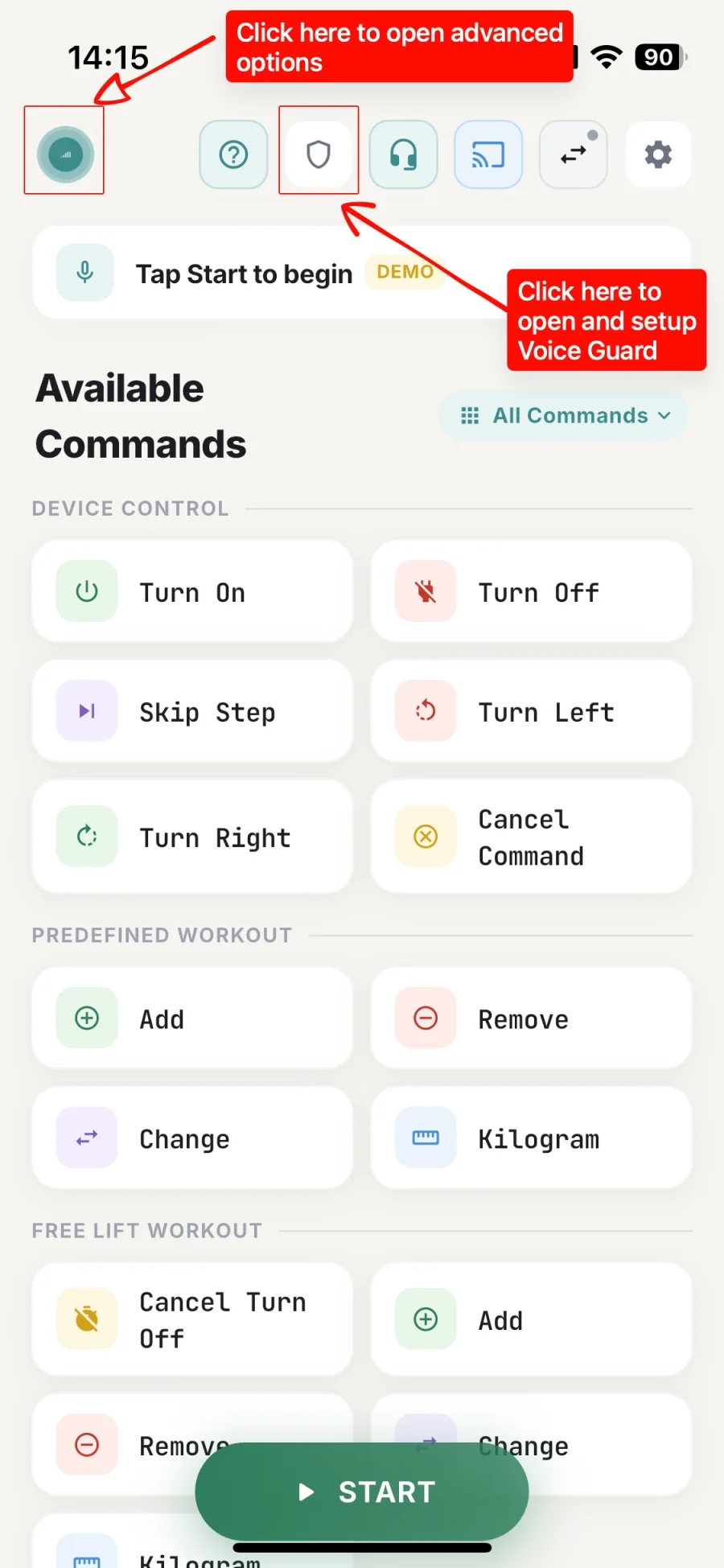
Everything starts on the main screen. Two buttons in the top row matter here:
- The GMVoice logo in the top-left corner opens the advanced options panel. That is where Field Debug lives.
- The shield icon opens Voice Guard.
Step 2: Set up Voice Guard first
Before you record anything, it is worth doing the Voice Guard setup. Voice Guard checks every spoken command against a print of your voice so only you can drive the machine. A session recorded with it set up tells me a lot more than one without.
Tap the shield, then Set up voice. It is a short guided setup: you read aloud for about 30 seconds, then train your commands.
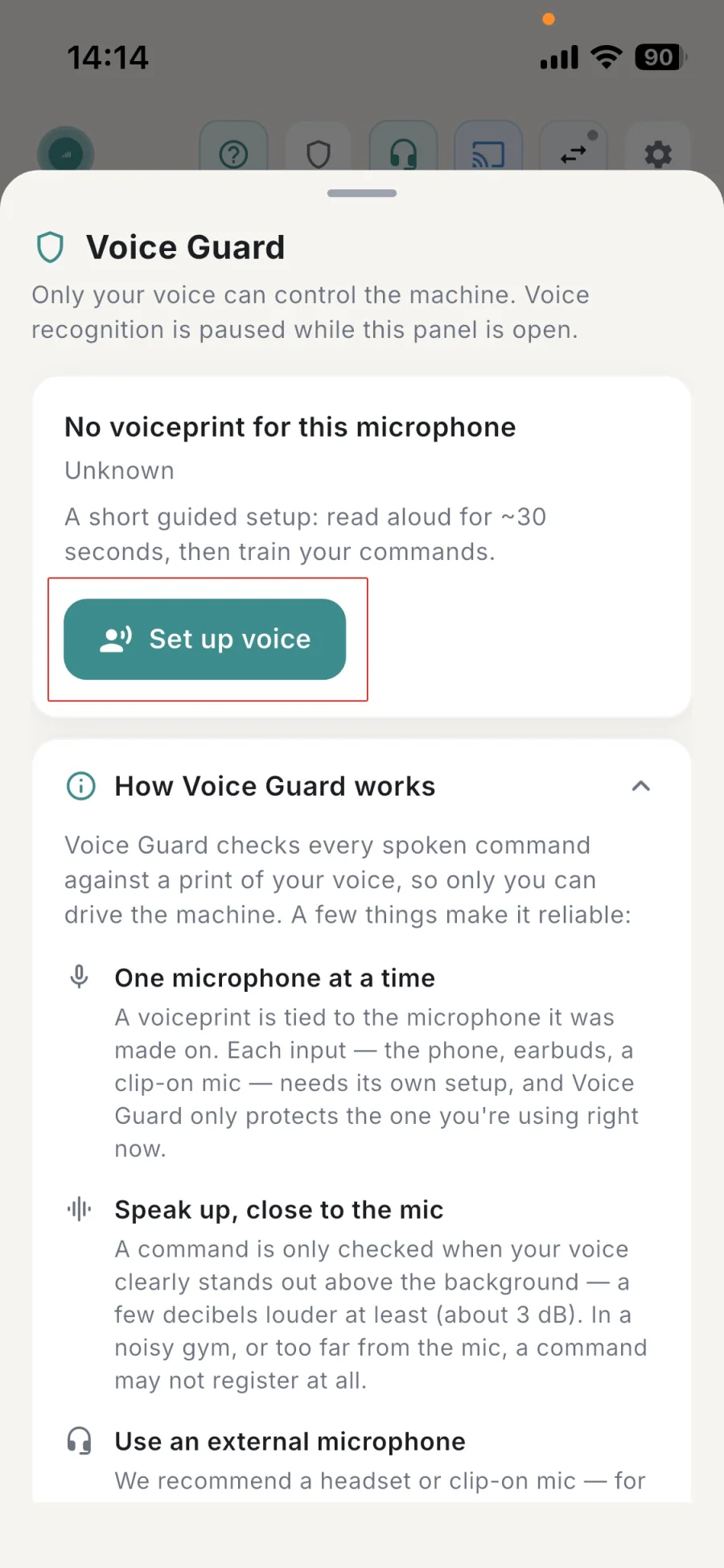
Two things from that panel are worth repeating, because they explain most "it did not hear me" reports on their own:
- One microphone at a time. A voiceprint belongs to the input it was made on. Your phone, your earbuds and a clip-on mic each need their own setup, and Voice Guard only protects the one you are using right now.
- Speak up, close to the mic. A command is only checked when your voice clearly stands out above the background, roughly 3 dB louder. In a noisy gym, or too far from the mic, a command may not register at all.
Step 3: Turn on Field Debug
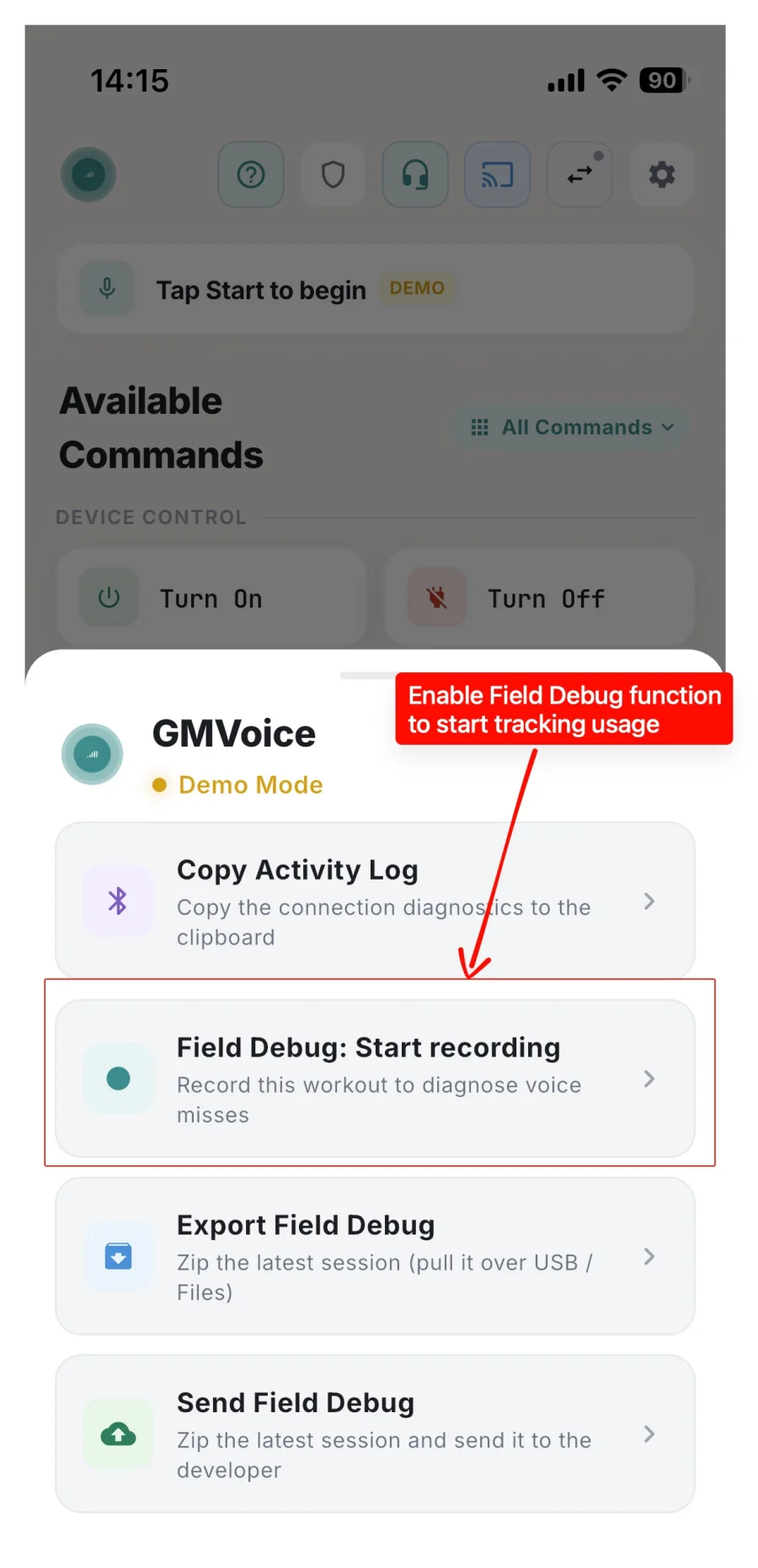
Tap the GMVoice logo to open the advanced options panel and choose Field Debug: Start recording. From this moment the session is being captured.
Step 4: Start your voice commands
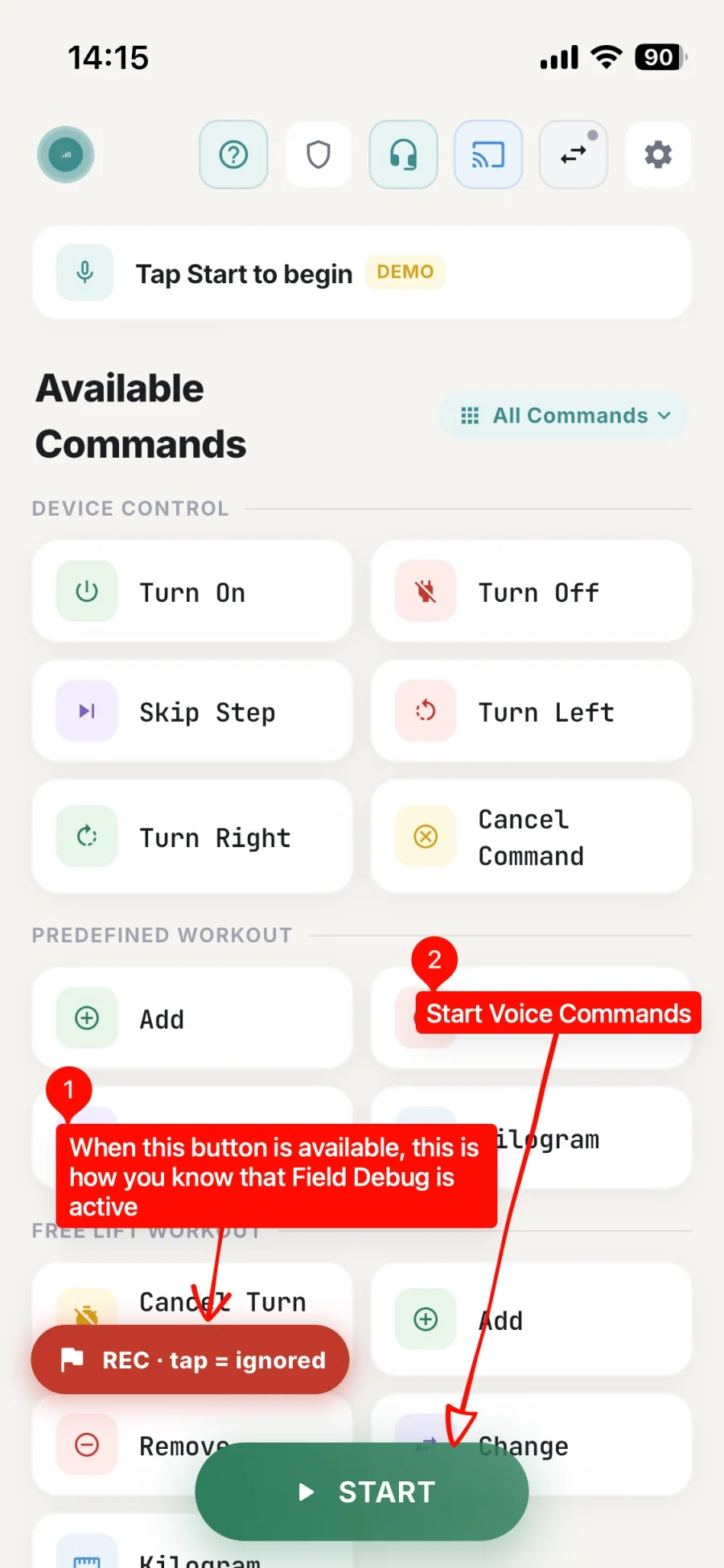
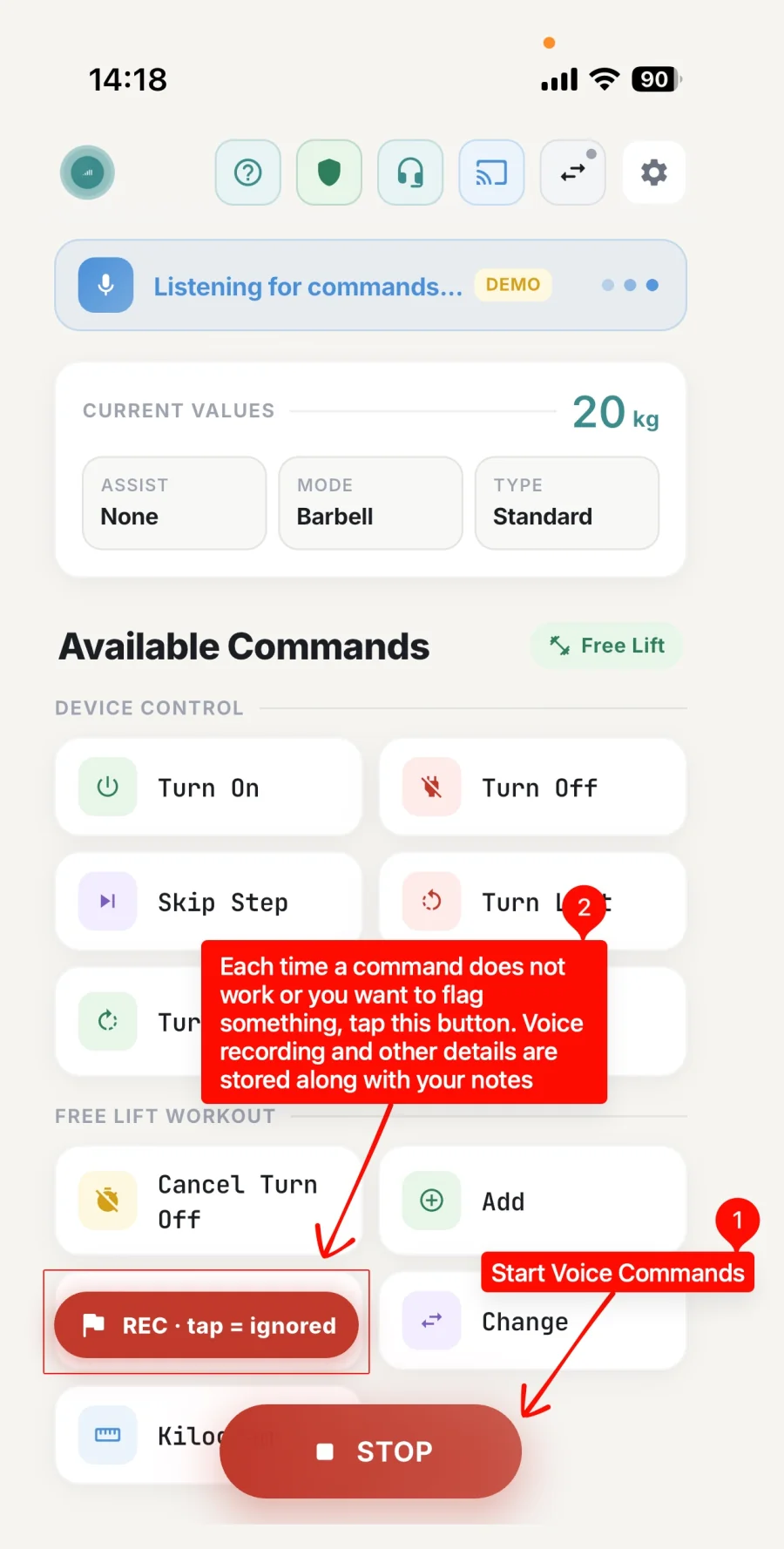
Close the panel. You should now see a red REC · tap = ignored pill floating above the command list. That pill is how you know Field Debug is active. If it is not there, the recording did not start; go back to Step 3.
Then tap START and train exactly as you normally would. Do not change your routine for the recording. I want to see the real problem, in the real conditions where it happens.
Step 5: Flag every command that misses
This is the part that makes the whole capture useful. Every single time a command does not work, tap the red REC pill right away. Ignored, misheard, triggered the wrong thing, reacted far too slowly: all of it counts.
The tap drops a marker at that exact second, and the audio around it plus the pipeline details are stored with it. Without markers I have to guess where in a 40-minute recording something went wrong; with them I jump straight to it.
Step 6: Add a one-line note
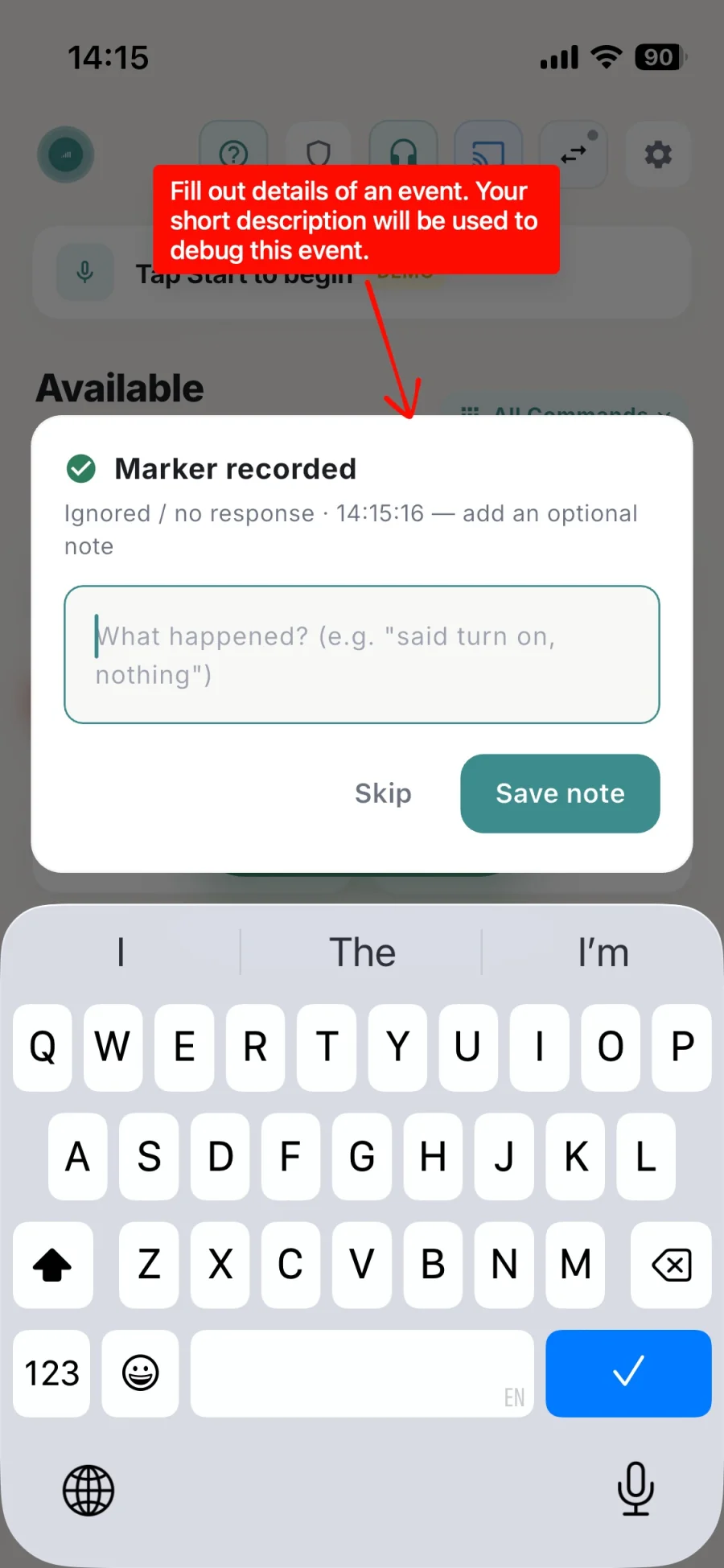
After each marker, a Marker recorded dialog pops up and asks what happened. Type one short line and tap Save note. You can also tap Skip and the marker is kept either way, but a note makes it far easier to work out what you expected.
Good notes are short and concrete:
- "said turn on, nothing happened"
- "said forty kilograms, it set 14"
- "skip step worked but took about 5 seconds"
- "my training partner talked and it triggered turn off"
Step 7: Stop the recording when you finish
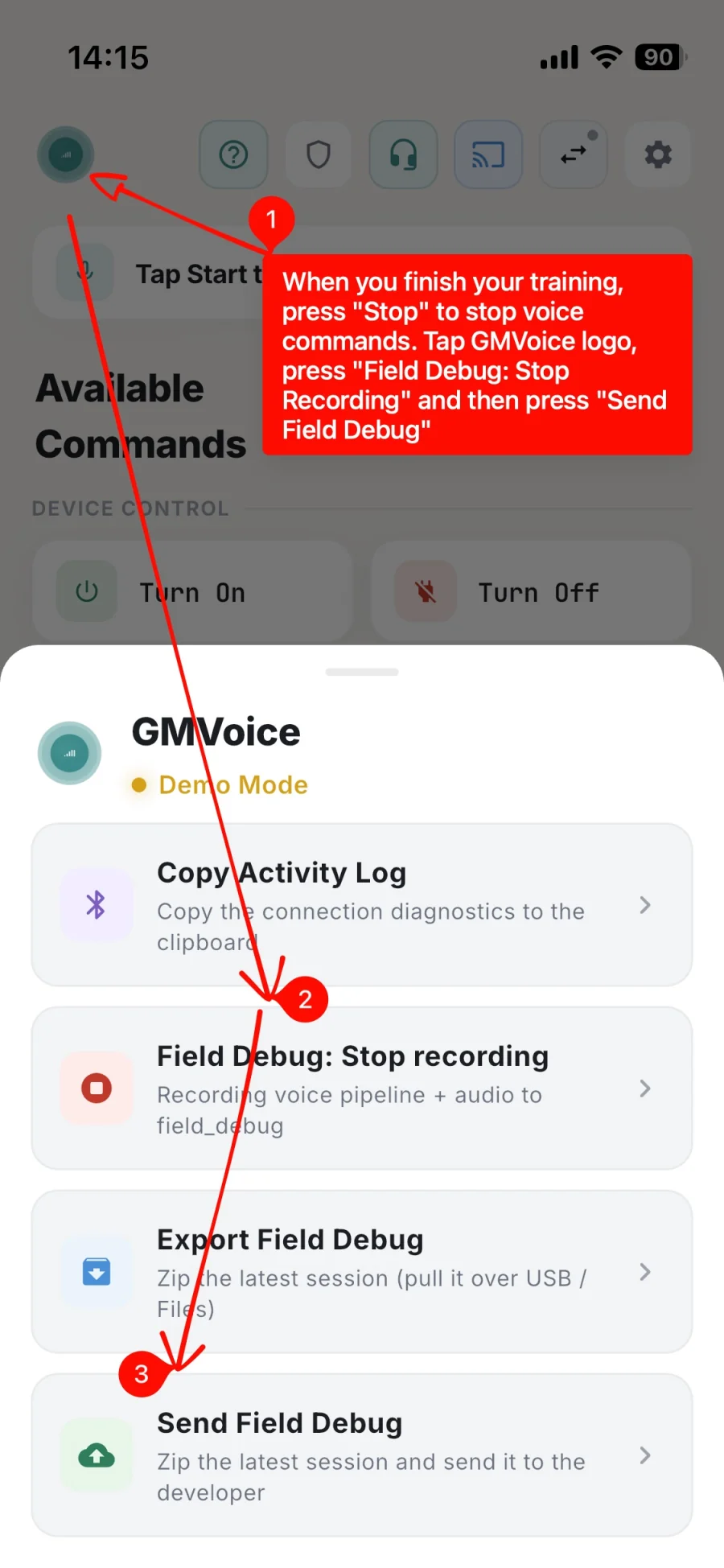
When the workout is done:
- Tap STOP to stop voice commands.
- Tap the GMVoice logo to open the advanced options panel again.
- Tap Field Debug: Stop recording.
- Tap Send Field Debug.
Step 8: Add your email and a short summary
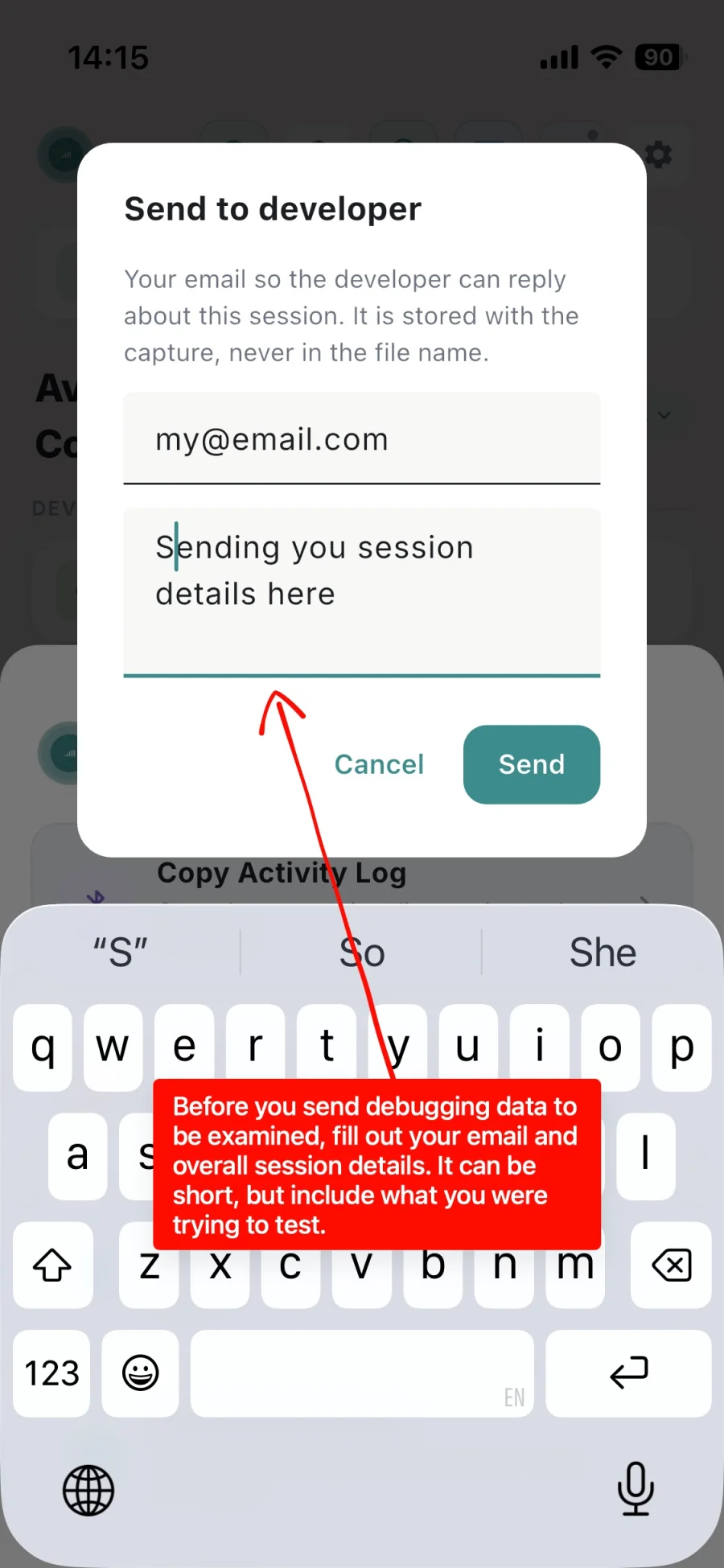
The last screen asks for two things. Both matter:
- Your email, so I can actually reply to you about this session. It is stored with the capture, never in the file name.
- A short summary of the session: what you were trying to test, what setup you were on, what you expected to happen.
It can be two sentences. Something like: "Free Lift with AirPods, tried changing weight by voice about ten times, three were ignored, and those are the markers." Then tap Send.
How to make a capture that is actually useful
A few habits make a big difference to how quickly I can fix something:
- Short or full workout, both are fine. Record a quick 10-minute session on purpose, or just leave it running through your normal training. What matters is that you flag the misses, not how long the session is.
- Reproduce the problem on purpose. If one specific command fails, try it several times in a row and flag each attempt.
- Do not switch microphones mid-session. If you want to compare your phone mic against earbuds, record two separate sessions.
- Flag it immediately. The marker is a timestamp, so tapping it two minutes later points me at the wrong part of the audio.
- Mention the background. Music, a busy gym, a TV in the room. Put it in the summary, it is usually the answer.
What happens next
I go through the markers first, listen to the audio around each one, and compare it against what the pipeline detected. Most reports fall into one of a handful of buckets: the mic never picked the command up, the transcription was close but not close enough, Voice Guard rejected it as not-your-voice, or the command reached the machine and the machine was slow to respond. Each one has a different fix, and the capture is what tells them apart.
If you would rather write first, or you are not sure whether something is worth recording, just email me at contact@gmvoice.tech. And if you are still setting things up, the DIY start guide and the Dongle API guide cover the two things that most often cause trouble before voice recognition is even involved.
Try GMVoice
Download the app, choose the mic setup you already have, and start training with your voice.
Related guides
- How to Debug GMVoice Fast in 5 Steps, No Fluff
- How to Connect AirPods or Bluetooth Headphones to Speediance Gym Monster (2026)
- How to Set Up GMVoice Siri Shortcuts on iPhone
Planning your next session? GM Manager builds Speediance workouts in your browser.