A command did not work. Writing me an email about it does not help much, because I cannot hear what your phone heard. So do not describe it. Record it.
Five steps, five screenshots. That is the whole guide.
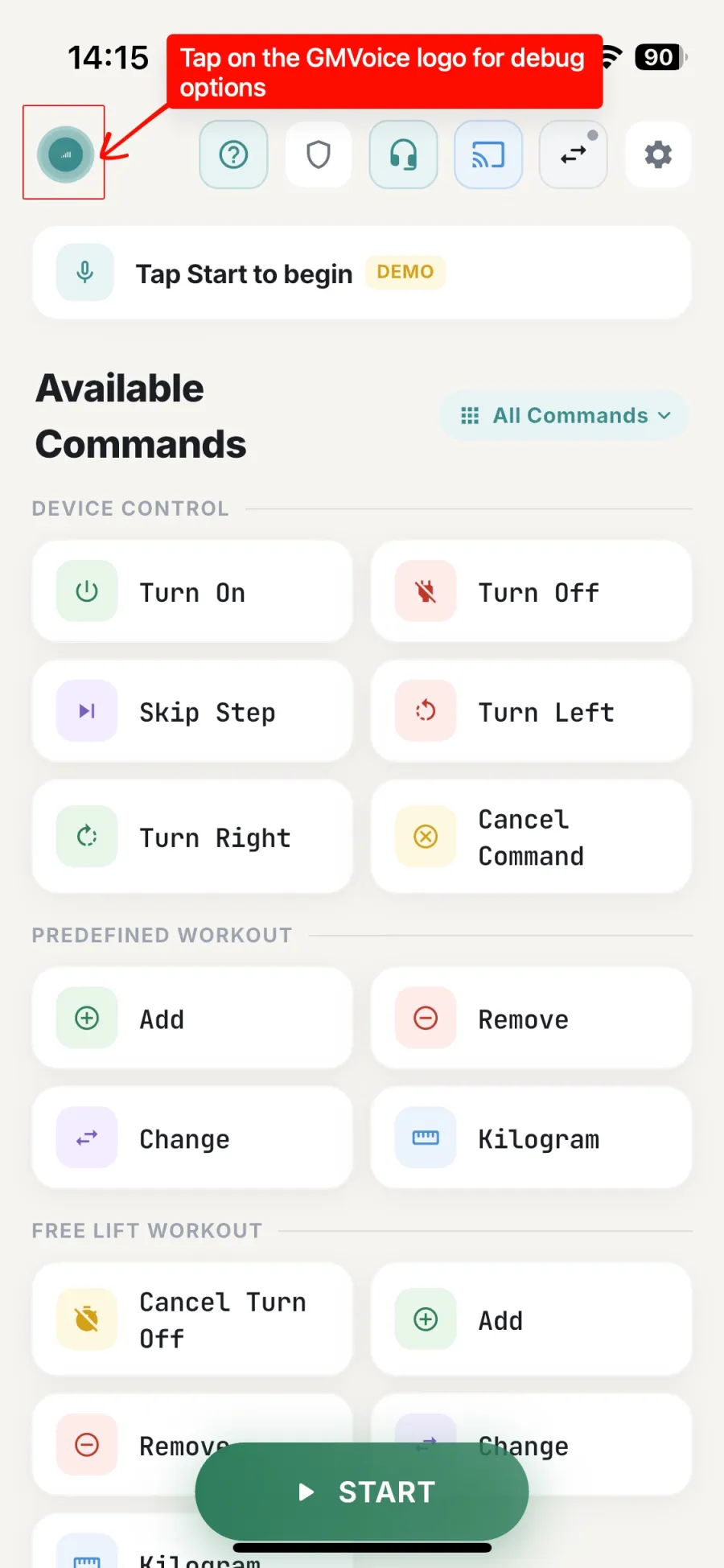
1. Tap the GMVoice logo
Top-left corner of the main screen. That opens the debug options.
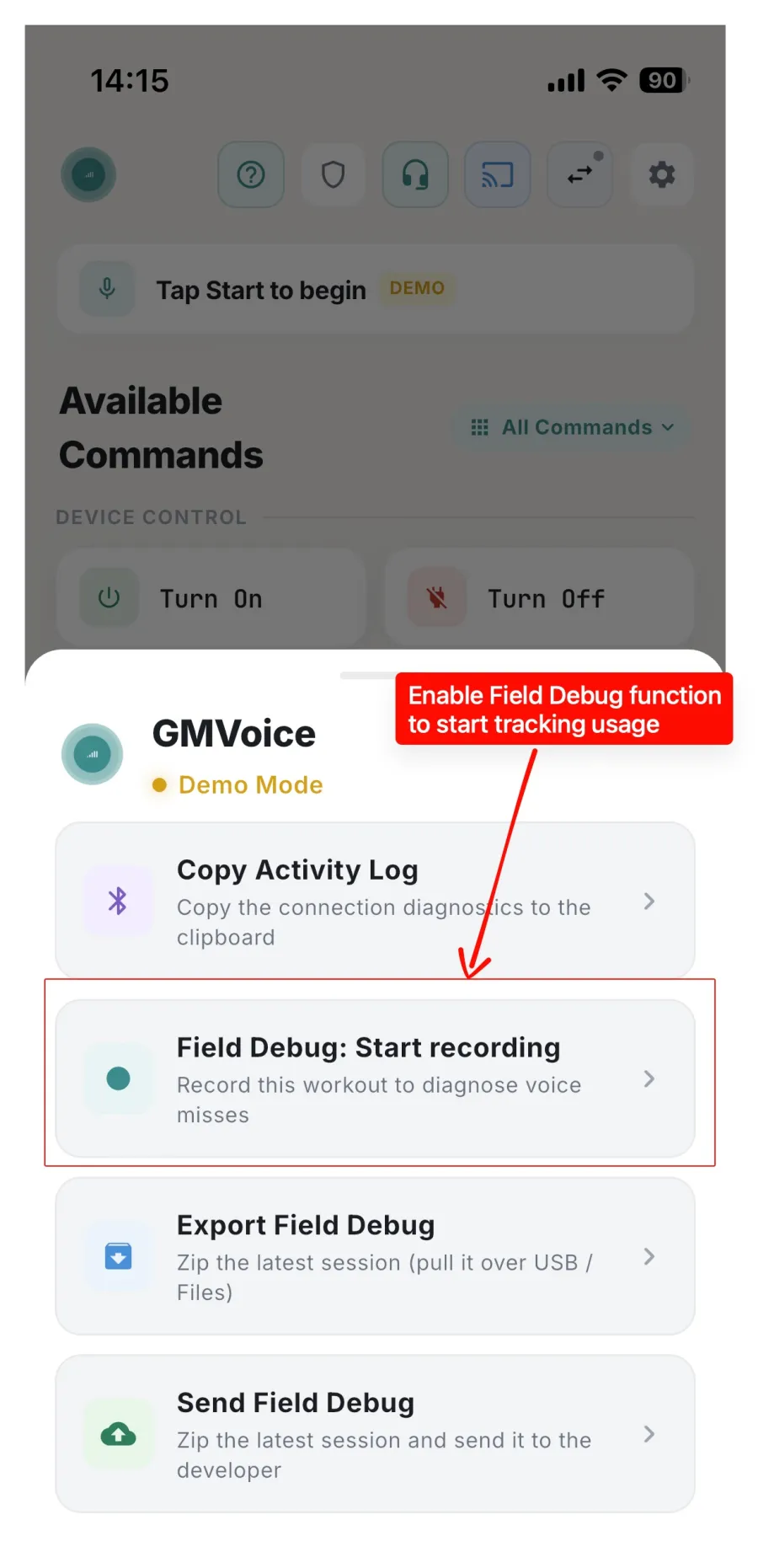
2. Tap "Field Debug: Start recording"
From that moment the session is being captured. Close the panel, tap START, and train exactly as you normally would. Do not go easy on it. I need the real problem, in the real conditions where it happens.
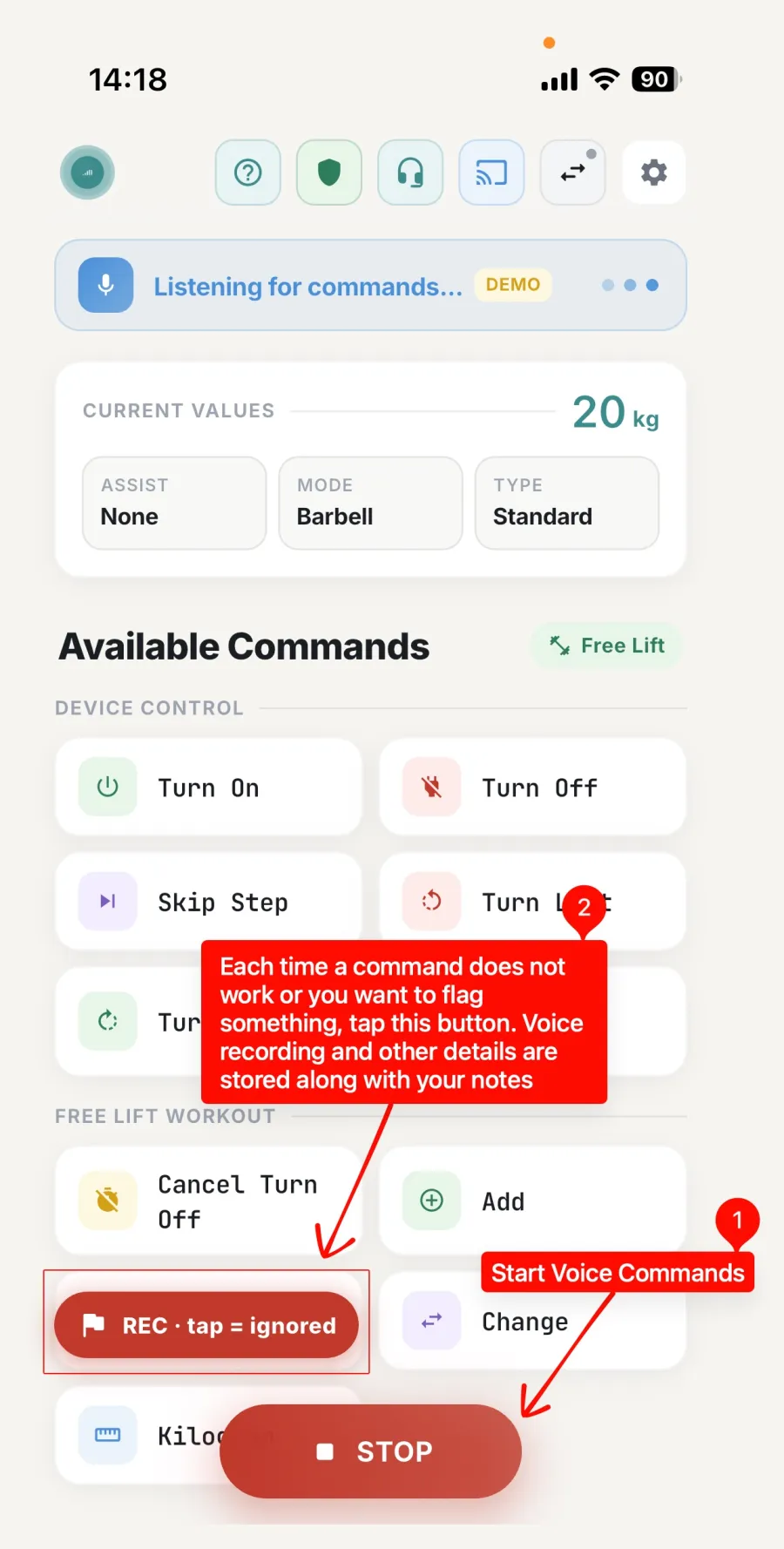
3. Tap REC every time a command misses
During the workout the red REC pill sits above the command list. Every time a command is ignored, misheard or does the wrong thing, tap it. It drops a marker at that exact second and keeps the audio and the pipeline details around it, so I go straight to the problem instead of listening through the whole workout.
Tap it as often as you need, there is no limit. A capture with markers is worth far more than one without.
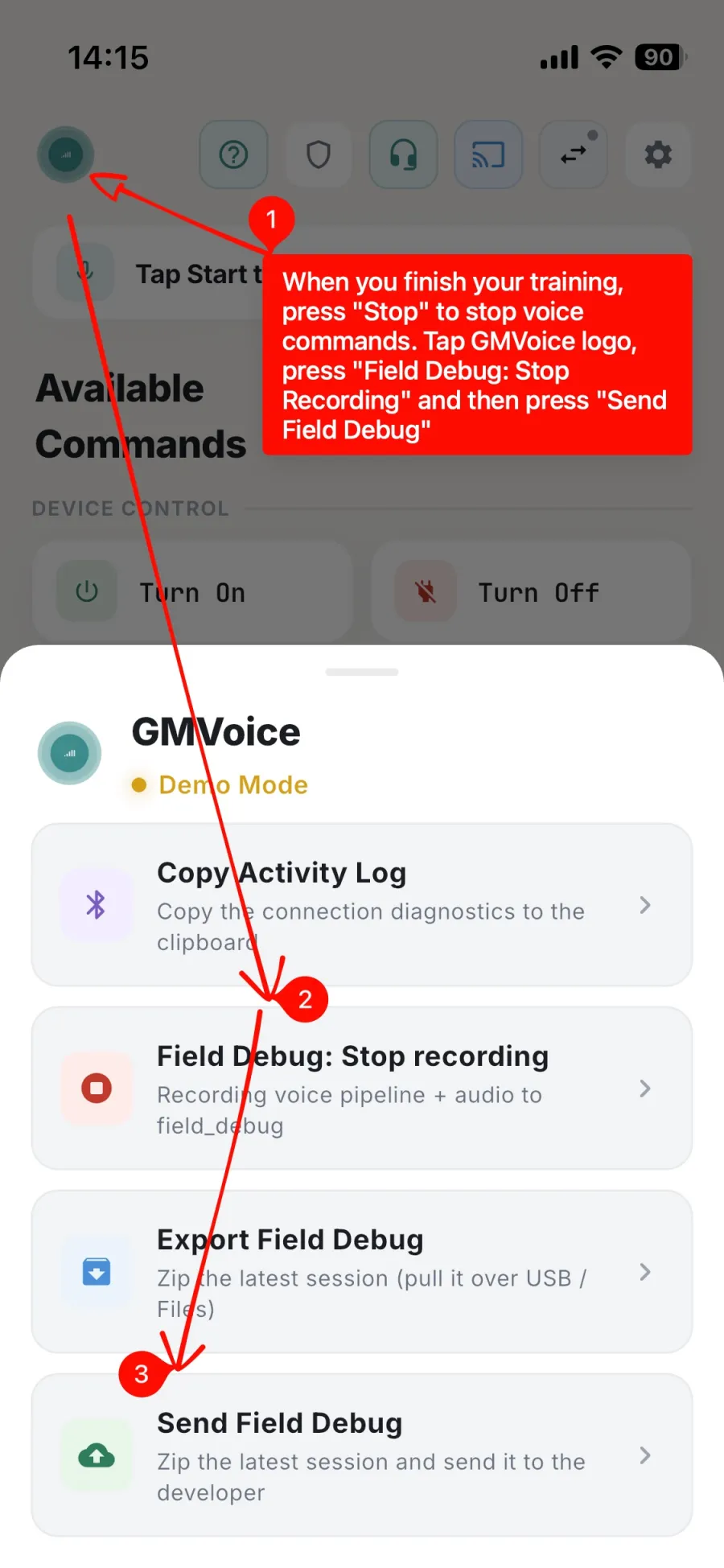
4. Finish, stop, send
When the workout is done, in this order:
- STOP stops voice commands.
- GMVoice logo opens the debug menu again.
- Field Debug: Stop recording.
- Send Field Debug.
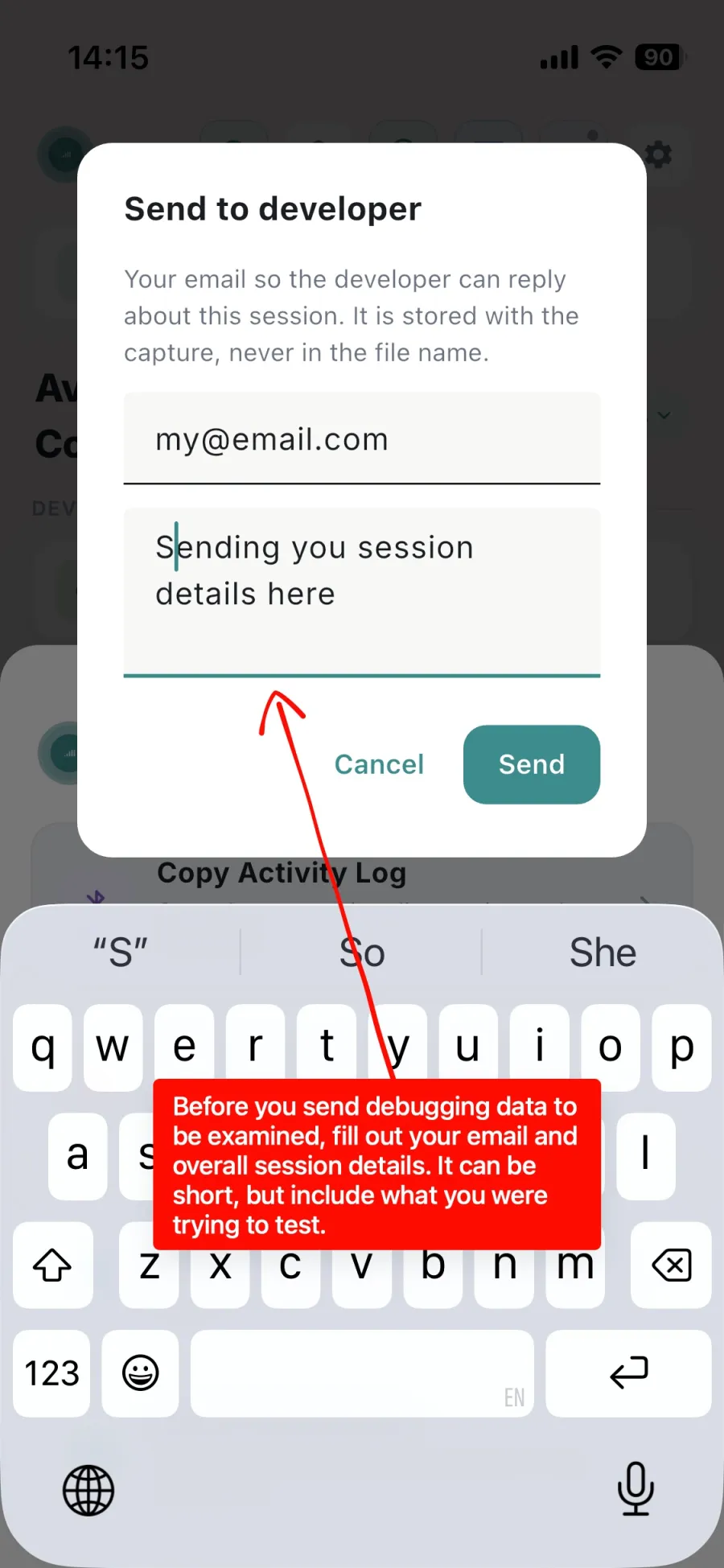
5. Your email and one line about the session
Two fields. The email is so I can reply to you about this exact session. The message is so I know what you were trying to do.
One or two sentences is enough. For example: "Free Lift with AirPods, said turn on about ten times, three did nothing." Then tap Send.
What actually gets sent
- The audio the microphone picked up during the session.
- The voice pipeline log: what was heard, how it was transcribed, which command it matched or why it did not.
- Your markers and notes, if you tapped any.
- Device and connection details: microphone, mode, how the Gym Monster was connected.
Nothing is recorded until you start a session yourself, and nothing leaves your phone until you tap Send. The capture is used only to diagnose the problem you reported. Details in the privacy policy.
Three things that break a capture
- Switching microphones mid-session. Phone mic and earbuds behave differently. Record two sessions instead.
- Sending without stopping. Tap Field Debug: Stop recording first, otherwise you send the previous session.
- No email. Then I have the recording and no way to tell you what I found.
That is it. If you want the long version (Voice Guard setup, markers, notes, what I look at first), read How to record a Field Debug session. Otherwise just email me at contact@gmvoice.tech.
Try GMVoice
Download the app, choose the mic setup you already have, and start training with your voice.
Related guides
- How to Record a Field Debug Session in GMVoice (Step-by-Step)
- How to Connect AirPods or Bluetooth Headphones to Speediance Gym Monster (2026)
- How to Use GMVoice with Google Assistant on Android
Planning your next session? GM Manager builds Speediance workouts in your browser.