If GMVoice connects to your Gym Monster over Wi-Fi or in hybrid mode (dongle plus Wi-Fi), you do not need any extra hardware to hear the coach in your headphones. GMVoice streams the Gym Monster audio to your phone and mixes it with your own music. It takes one setting in GMVoice and one on the Gym Monster.
Using a dongle-only connection, or want the headphones paired straight to the machine? Follow the hardware guide instead: how to connect AirPods or Bluetooth headphones to the Gym Monster with a USB Bluetooth transmitter.
What you need
- GMVoice on iPhone or Android, connected to the Gym Monster over Wi-Fi or in hybrid mode.
- Dongle API installed on the Gym Monster.
- Headphones connected to your phone, for example AirPods. Any headphones that play your phone audio work.
No Bluetooth transmitter, no USB hub and nothing paired to the Gym Monster itself.
Step 1: Turn on Gym Monster audio in GMVoice
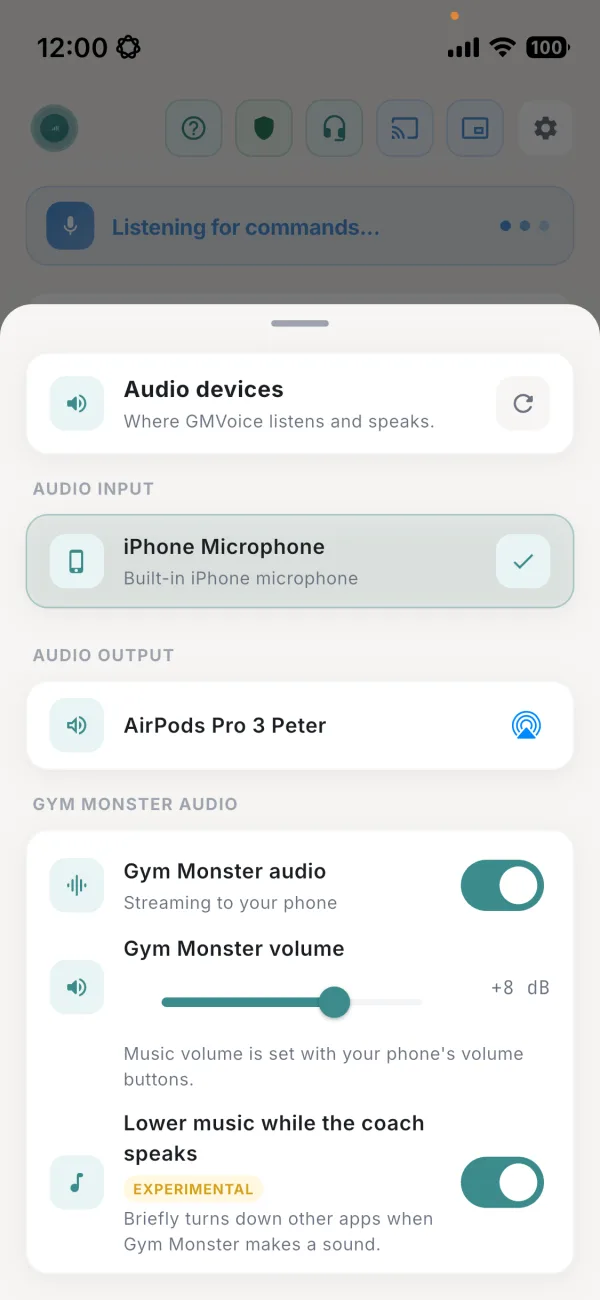
Tap the headphones icon at the top of GMVoice to open Audio devices. Check that Audio output shows your headphones, then go to the Gym Monster audio section:
- Gym Monster audio: turn it on. The line below changes to Streaming to your phone.
- Gym Monster volume: sets how loud the Gym Monster sounds in your headphones. Your own music is still set with the phone's volume buttons, so the two are balanced separately.
- Lower music while the coach speaks: turn it on if you listen to your own music. Other apps are turned down briefly every time the Gym Monster makes a sound, so the coach is always easy to understand. It is marked Experimental.
Step 2: Set the Gym Monster volume sliders
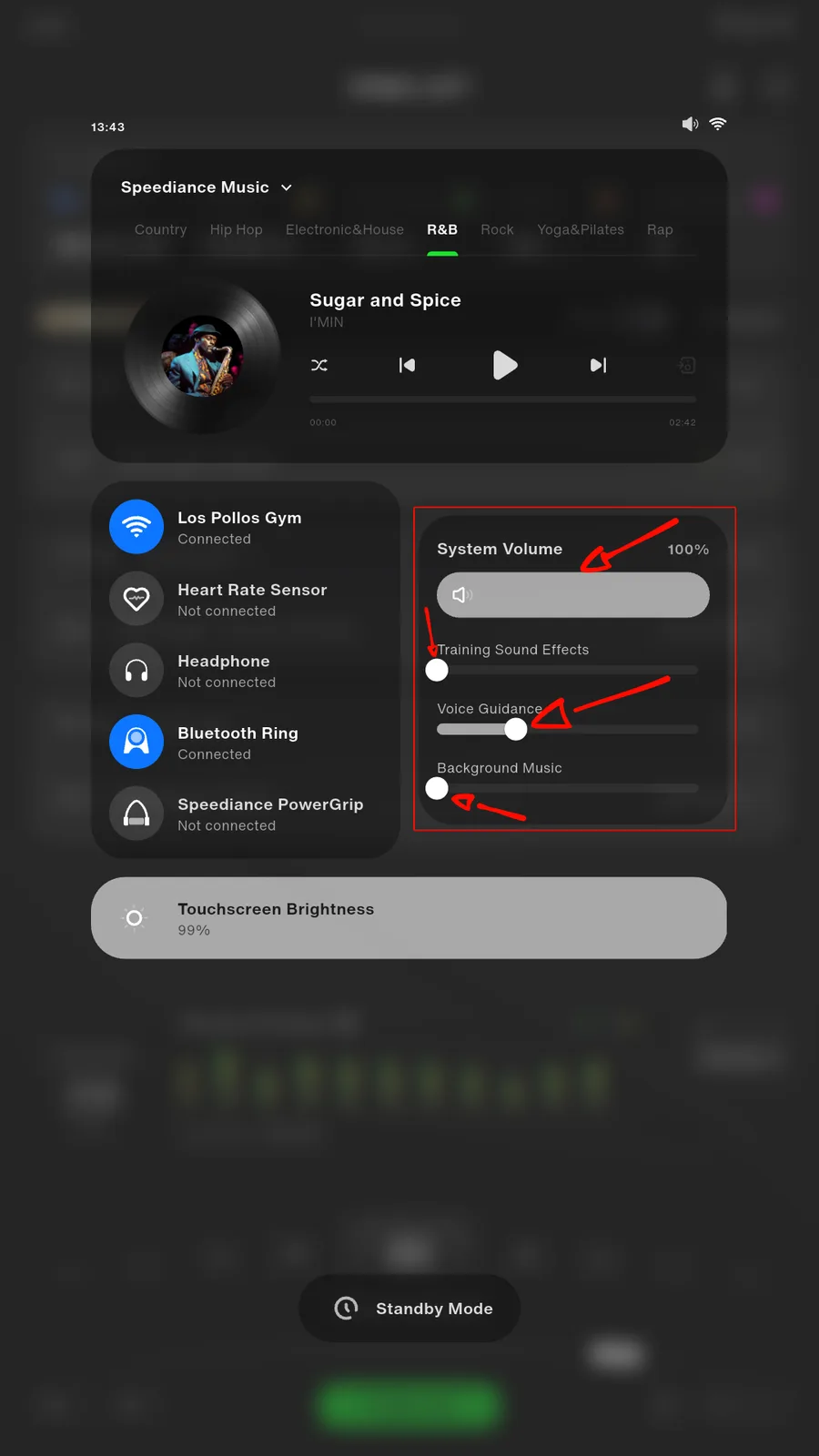
On the Gym Monster, open the panel with Speediance Music, the connections and System Volume. With Lower music while the coach speaks turned on, set the four sliders like this:
- System Volume: 100%. The Gym Monster sends a full signal, and you set the loudness in GMVoice with Gym Monster volume.
- Training Sound Effects: off. Slide it all the way to the left.
- Voice Guidance: about a third. This is the coach. Adjust it until the voice sits well over your music.
- Background Music: off. Your music comes from the phone now.
Why these settings work
Lower music while the coach speaks reacts to every sound from the Gym Monster, not only to the coach. Training sound effects play on almost every rep and the Gym Monster background music plays the whole time, so with either of them on, your own music would keep dipping. With both at zero, the only sound left is the voice guidance, and your music is turned down exactly when the coach speaks.
Not using Lower music while the coach speaks? Then you can leave the sliders as you like. The Gym Monster audio simply plays together with your phone audio, and you can even keep Speediance Music playing if you prefer it.
Voice commands keep working. GMVoice listens through the microphone you picked under Audio input while the Gym Monster audio plays in your headphones. Test a few commands with music on before a heavy set.
Which audio setup is right for you?
- Wi-Fi or hybrid mode with the Dongle API: this guide. Your headphones stay connected to the phone, and the Gym Monster audio is mixed with your own music.
- Dongle-only connection, or audio only from the machine: pair your headphones with the Gym Monster through a USB Bluetooth transmitter.
Troubleshooting
- No Gym Monster sound in the headphones: check that GMVoice is connected over Wi-Fi or in hybrid mode, the Dongle API is installed, and Gym Monster audio is turned on. It streams while GMVoice is listening.
- Your music keeps dipping: Training Sound Effects or Background Music on the Gym Monster is not all the way at zero.
- The coach is too quiet: raise Voice Guidance on the Gym Monster or Gym Monster volume in GMVoice.
- Your music is too loud or too quiet: use the phone's volume buttons.
FAQ
Do I need a Bluetooth transmitter to hear the Gym Monster in my headphones?
Not if GMVoice connects to your Gym Monster over Wi-Fi or in hybrid mode (dongle plus Wi-Fi) with the Dongle API installed. Turn on Gym Monster audio in GMVoice and the machine's sound streams to your phone and into the headphones you already use with it. With a dongle-only connection you still need a USB Bluetooth transmitter on the Gym Monster.
Why should Training Sound Effects and Background Music be turned off on the Gym Monster?
Lower music while the coach speaks turns down your phone music every time the Gym Monster makes a sound. Training sound effects play on almost every rep and the Gym Monster background music plays all the time, so your own music would keep dipping. With both at zero, only the coach's voice guidance lowers your music.
Does Gym Monster audio work on iPhone and Android?
Yes. Gym Monster audio works on both iPhone and Android, with GMVoice connected over Wi-Fi or in hybrid mode and the Dongle API installed on the Gym Monster. Lower music while the coach speaks is marked experimental in the app.
Try GMVoice
Download the app, choose the mic setup you already have, and start training with your voice.
Related guides
- How to Connect AirPods or Bluetooth Headphones to Speediance Gym Monster (2026)
- What Is the Dongle API? Faster, More Stable Gym Monster Commands
- I can't hear music when using GMVoice
Planning your next session? GM Manager builds Speediance workouts in your browser.